> ## Documentation Index
> Fetch the complete documentation index at: https://docs.docketqa.com/llms.txt
> Use this file to discover all available pages before exploring further.
# Mobile Apps
> Testing native iOS and Android applications with Docket
### Overview
Docket supports writing dedicated test suites for your native **iOS** and **Android** apps, just like you would for a web app. Each mobile test runs against your app on a dedicated iOS simulator or Android emulator — the mobile counterpart to the web [remote screen](/essentials/remote-screen).
### Supported Devices
When configuring a mobile test, you pick a device profile. Docket provisions a fresh simulator/emulator matching that profile for each run.
**iOS simulators**
* iPhone 17 Pro
* iPhone 16e
* iPad Pro 13"
**Android emulators**
* Pixel 9
* Pixel 9 Pro XL
* Pixel 9 Pro Fold
* Pixel Tablet
* Galaxy S23
### Apps and Builds
A mobile app in Docket is a long-lived container for every build you ship. Tests always run against the app's **active build**, which Docket installs onto the simulator before each run — so you never need to edit your tests after bumping a version.
* **Create an app**: choose a name and platform (`ios` or `android`) and upload your first build.
* **Add builds over time**: each build has its own name (typically a version or commit SHA) and binary.
* **Switch the active build**: promote any build to active to run your existing tests against it — useful for release candidates or reproducing regressions on older versions. Deleting the active build auto-promotes the next most recent one.
All of the above can be driven from CI with your API key — see [Upload a Build](/api-reference/endpoint/upload-build) for the upload flow and [Set Active Build](/api-reference/endpoint/set-current-build) for promoting a version after a release.
### Device Settings
Mobile tests expose a **Device Settings** tab inside Advanced Settings for configuring the simulator/emulator environment before the run starts. This tab only appears for mobile tests.
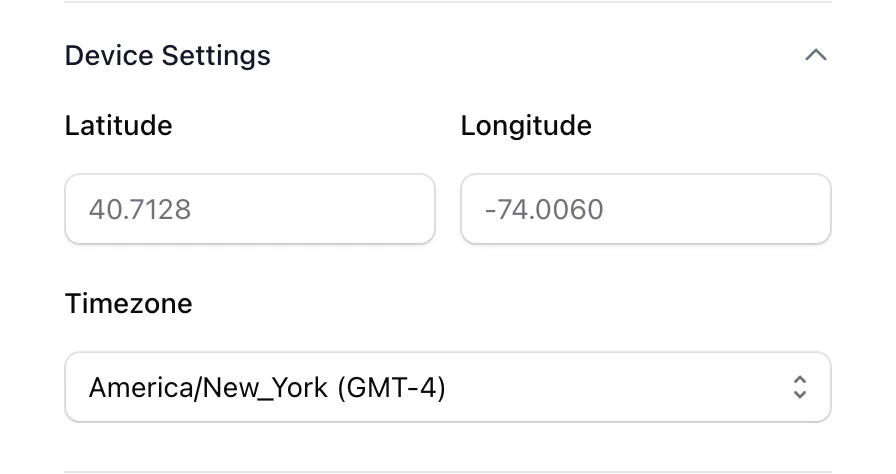 * **Latitude / Longitude** (iOS and Android): override the device's GPS location so location-aware flows resolve to a specific place.
* **Timezone** (iOS and Android): set the simulator/emulator's timezone, useful for testing time-of-day, scheduling, and region-specific behavior.
* **Orientation** (Android only): switch the emulator between **portrait** and **landscape**.
### App Error Logs
For both iOS and Android runs, Docket captures the app's native device logs and surfaces them in the run view under the **App errors** tab whenever a log is available, making it easy to trace a failed step back to a crash or exception inside your app.
The log viewer highlights crashes and exceptions, collapses repeated lines, supports search, and offers the full log as a download.
### Build Requirements
Docket installs your app onto a **simulator/emulator**, not a physical device.
Upload a zipped **simulator `.app` bundle** — **not** an `.ipa`.
#### Xcode
Open the project, choose the app target and any simulator device in the toolbar, then go to **Product → Scheme → Edit Scheme** and set the **Run** build configuration to **Release**. Then press `Cmd + B`. The `.app` will be at:
```
~/Library/Developer/Xcode/DerivedData//Build/Products/Release-iphonesimulator/.app
```
#### React Native
```bash theme={null}
npx react-native run-ios --mode Release
```
The `.app` will be at `ios/build/Build/Products/Release-iphonesimulator/.app`.
#### Flutter
```bash theme={null}
flutter build ios --simulator
```
Add `--flavor ` if your project uses flavors. The `.app` will be at `build/ios/iphonesimulator/Runner.app`.
Upload a `.apk` (or `.xapk` / `.apks` / `.apkm`) that includes `arm64-v8a` libraries. 32-bit-only APKs are rejected at upload.
#### Android Studio
Choose **Build → Build Bundle(s) / APK(s) → Build APK(s)**, or from the terminal:
```bash theme={null}
./gradlew assembleRelease
```
The `.apk` will be at `app/build/outputs/apk/release/app-release.apk`.
#### React Native
```bash theme={null}
cd android && ./gradlew assembleRelease
```
The `.apk` will be at `android/app/build/outputs/apk/release/app-release.apk`.
#### Flutter
```bash theme={null}
flutter build apk --release
```
Add `--flavor ` if your project uses flavors. The `.apk` will be at `build/app/outputs/flutter-apk/app-release.apk`.
* **Latitude / Longitude** (iOS and Android): override the device's GPS location so location-aware flows resolve to a specific place.
* **Timezone** (iOS and Android): set the simulator/emulator's timezone, useful for testing time-of-day, scheduling, and region-specific behavior.
* **Orientation** (Android only): switch the emulator between **portrait** and **landscape**.
### App Error Logs
For both iOS and Android runs, Docket captures the app's native device logs and surfaces them in the run view under the **App errors** tab whenever a log is available, making it easy to trace a failed step back to a crash or exception inside your app.
The log viewer highlights crashes and exceptions, collapses repeated lines, supports search, and offers the full log as a download.
### Build Requirements
Docket installs your app onto a **simulator/emulator**, not a physical device.
Upload a zipped **simulator `.app` bundle** — **not** an `.ipa`.
#### Xcode
Open the project, choose the app target and any simulator device in the toolbar, then go to **Product → Scheme → Edit Scheme** and set the **Run** build configuration to **Release**. Then press `Cmd + B`. The `.app` will be at:
```
~/Library/Developer/Xcode/DerivedData//Build/Products/Release-iphonesimulator/.app
```
#### React Native
```bash theme={null}
npx react-native run-ios --mode Release
```
The `.app` will be at `ios/build/Build/Products/Release-iphonesimulator/.app`.
#### Flutter
```bash theme={null}
flutter build ios --simulator
```
Add `--flavor ` if your project uses flavors. The `.app` will be at `build/ios/iphonesimulator/Runner.app`.
Upload a `.apk` (or `.xapk` / `.apks` / `.apkm`) that includes `arm64-v8a` libraries. 32-bit-only APKs are rejected at upload.
#### Android Studio
Choose **Build → Build Bundle(s) / APK(s) → Build APK(s)**, or from the terminal:
```bash theme={null}
./gradlew assembleRelease
```
The `.apk` will be at `app/build/outputs/apk/release/app-release.apk`.
#### React Native
```bash theme={null}
cd android && ./gradlew assembleRelease
```
The `.apk` will be at `android/app/build/outputs/apk/release/app-release.apk`.
#### Flutter
```bash theme={null}
flutter build apk --release
```
Add `--flavor ` if your project uses flavors. The `.apk` will be at `build/app/outputs/flutter-apk/app-release.apk`.