

Overview
Docket launches a single persistent browser instance that stays active as you create and edit tests. This browser is embedded in the side panel and synchronizes with whichever test configuration you’re currently working on. Key behaviors:- Single active tab: The browser can only be used in one tab at a time. If you open Docket in multiple tabs, only one will have access to the browser—others will show the browser as “busy”
- Persistent session: The browser stays active as long as you continue creating or editing tests, maintaining your session state
- Manual synchronization: When you switch between test configurations or make changes, use the “Resync Browser” button to sync the browser to the current test context
Browser Controls
When the browser is launched and you’re viewing a test, you’ll see several control options in the bottom bar: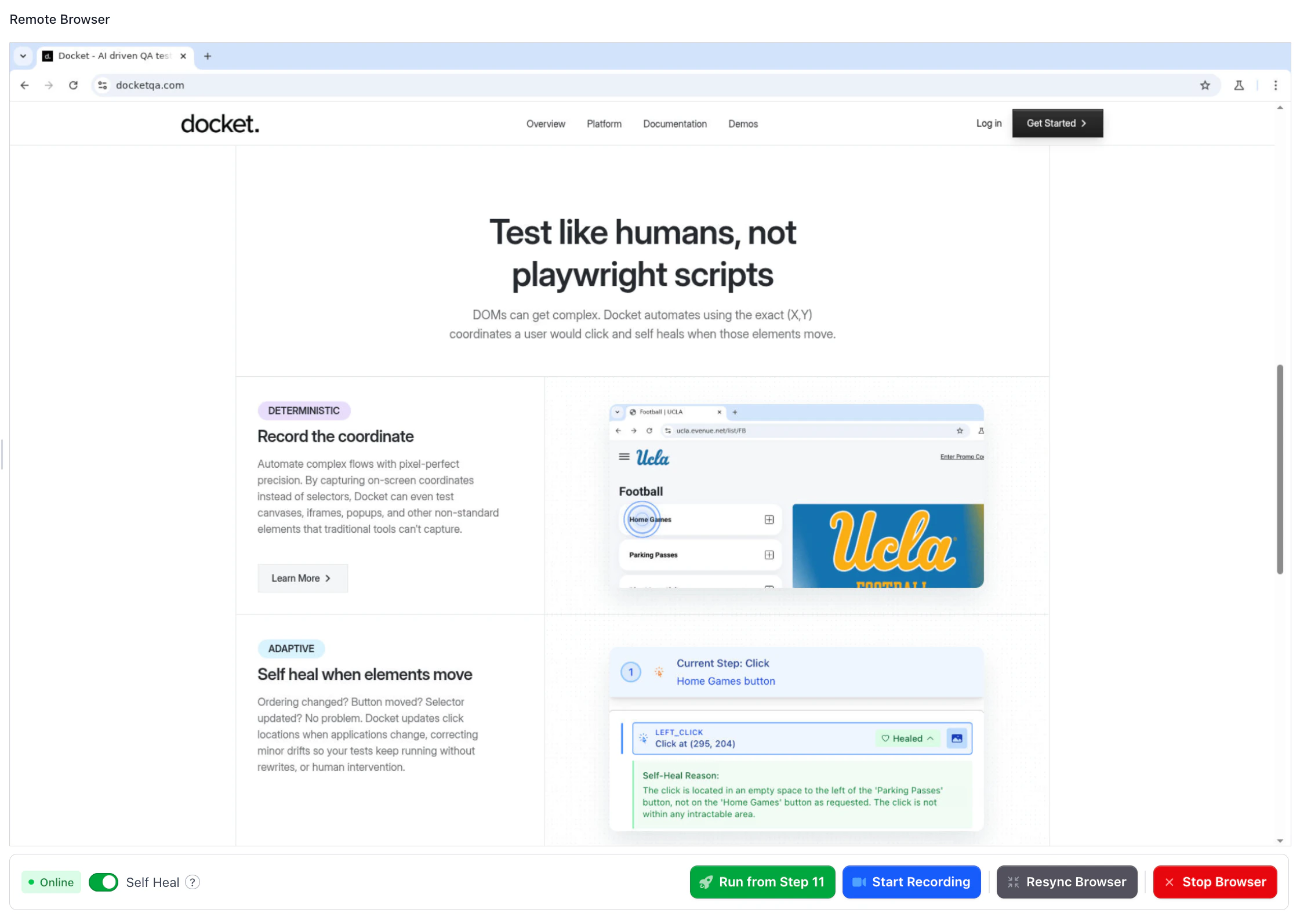
Browser Status Badge
Shows the current state of the browser instance. The browser cycles through several states:- Offline: Browser is not started
- Starting: Browser instance is starting up
- Online: Ready for execution or recording
- Recording: Ready for interaction in the browser. All events are captured and created in the step recorder. Cannot execute steps while recording
- Executing: Playing back steps in the browser. Cannot record during execution
- Stopping: Browser was stopped and will go offline
Self Heal Toggle
Controls how recorded steps replay during test execution.- Enabled (default): Before replaying each recorded step, Docket performs a check to see if the element is still available at the saved coordinates. If the check passes, the step executes normally. If the element has moved or is unavailable, the agent self-heals by locating it using the step description and action
- Disabled: The agent will directly replay from the exact saved coordinates without performing any checks or attempting to adapt
Run from Step
Executes your test starting from the currently selected step (highlighted in blue) and continues through subsequent steps in sequence. The execution respects the Self Heal toggle setting.Start Recording
Enables recording mode where you can interact with the embedded browser and Docket will automatically capture and cache your actions. This is the primary way to create recorded steps.Resync Browser
Manually synchronizes the browser with your current test configuration. This updates:- Variables (text, email, random alphanumeric)
- Uploaded files
- Viewport size
- Zoom level
- Entrypoint URL
- Logged-in user session (if any)