

Folders

Folders let you organize tests into a hierarchical structure, similar to a file system. As your test suite grows, folders help you group related tests by feature, team, or workflow.

Creating a Folder

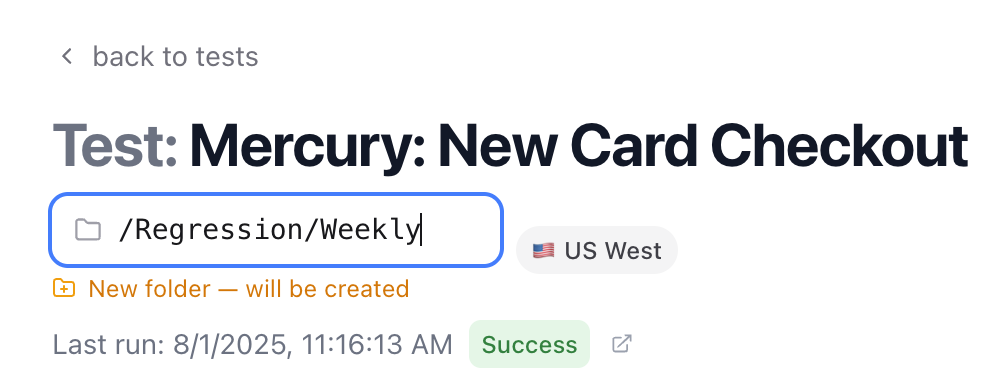
To create a folder, navigate to the Tests tab. You can create folders directly from the test list view using the folder creation option. create_folders.png Folder names can contain letters, numbers, hyphens, underscores, and spaces. You can nest folders up to 10 levels deep.
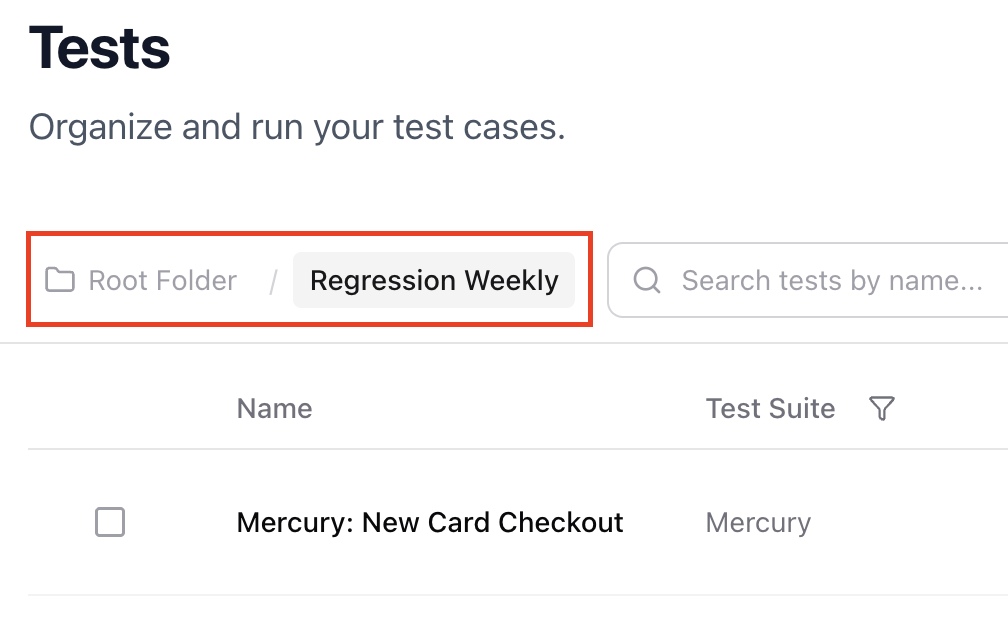
The breadcrumb bar at the top of the test list shows your current location in the folder hierarchy. Click any segment to jump to that level. folder_breadcrumb.png When the path gets long, intermediate segments are collapsed automatically — the root and last two segments always remain visible.
Moving Tests and Folders

You can move tests between folders in two ways:
  1. Drag and drop — Drag a test or folder row onto another folder or breadcrumb segment
  2. Modify dialog — Use the three-dot menu on a folder to access Rename, Move, and Expand options
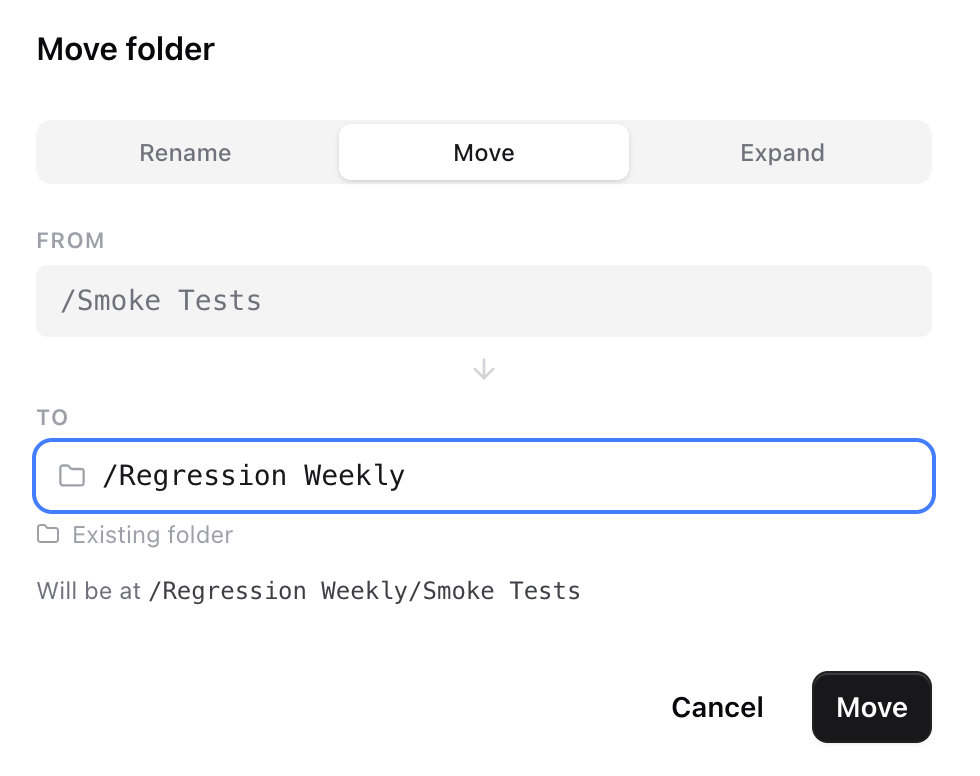
move_folders.png The Expand option dissolves a folder and moves all its contents up one level — useful for flattening your hierarchy when a folder is no longer needed.

Archiving Folders

To archive a folder, click the three-dot menu and select Archive. This archives the folder and all tests inside it, including any subfolders. Archived items can be restored by an admin.

Folders and Bulk Create

When you bulk create tests or generate tests with AI, the new tests are placed in the folder you’re currently viewing. Navigate to the desired folder before starting a bulk create operation to keep things organized.