

What Are Recorded Steps?
Recorded steps are clicks, hovers, and scrolls that Docket records while you interact with the remote screen during test creation. Each recorded step stores both the exact screen coordinates of your action and a natural language annotation that describes what you did. You can identify recorded steps by the yellow cache icon next to them.To see the coordinate that Docket has captured, simply hover over the icon.
Tip: For dynamic workflows or complex logic, consider using AI Steps instead, which adapt to UI changes automatically.
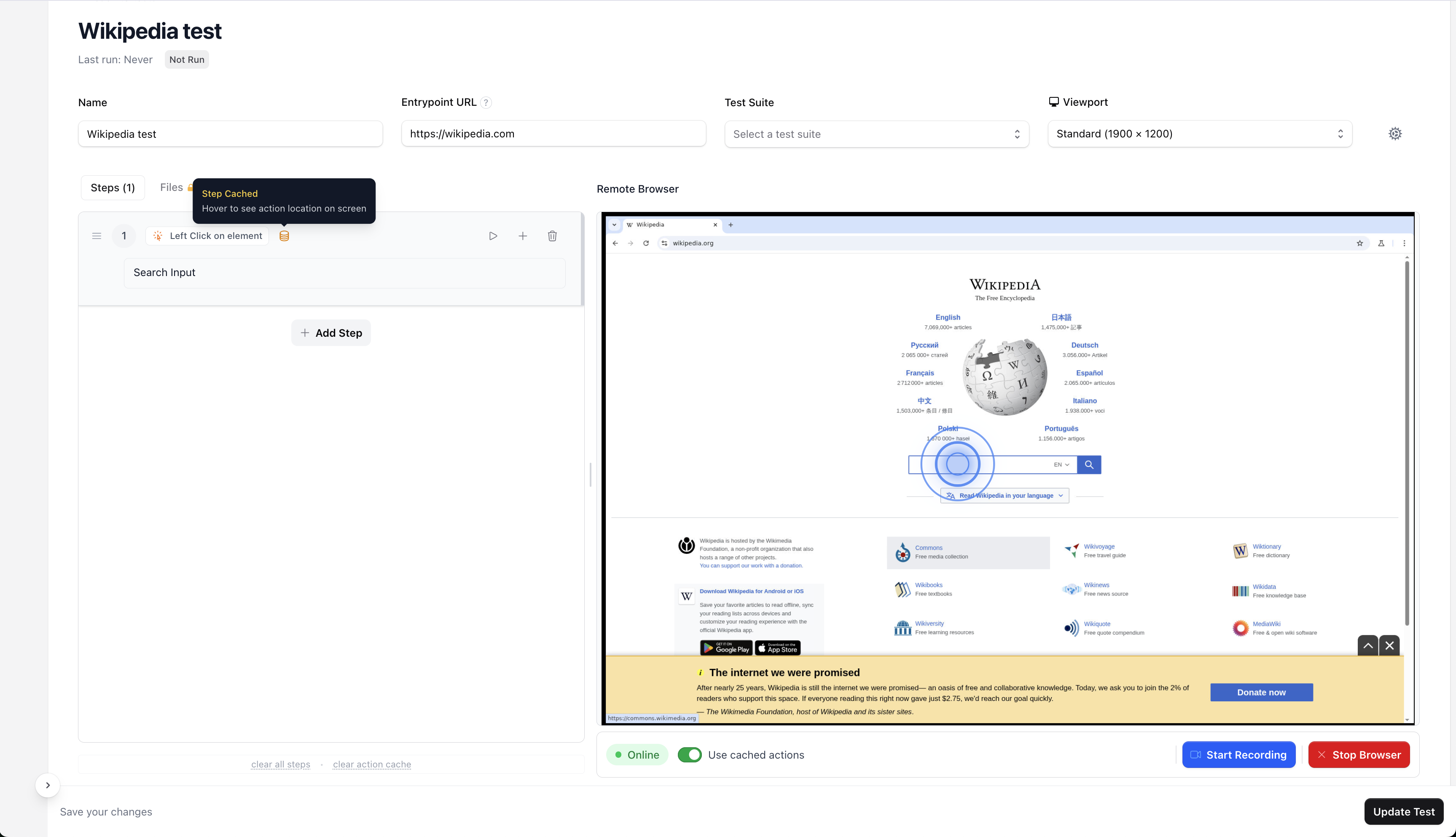
How Recorded Steps Work
Recorded steps execute sequentially, one after another. In recording mode, they do not waiting for page loads or self heal. Recorded steps will auto wait for page loads or try to self heal during full test runs (see below). If a minor change is made to your UI, Docket will be able to self heal as long as the annotation of the recorded action is correct. However, after major UI changes, it is recommended you ensure your recorded steps are up to date.Recorded Steps During Full Test Runs
When running a full test (manaully, scheduled, or part of CI/CD), Docket performs a pre-check before executing each recorded step.If the page hasn’t loaded yet or the click coordinate seems inconsistent with the annotation, Docket will trigger its AI vision model to attempt a self-heal. During self-healing, Docket uses:
- The step’s natural language annotation (e.g. “login button”)
- The current visual state of the page
This combination of coordinate precision and semantic context gives Docket reliability even as your UI evolves.
Writing Good Annotations
The annotations you see under recorded steps (e.g. “click login button”, “scroll to footer”) are critical for Docket’s reasoning and self-healing. Here’s how to make them effective:Scroll Actions
Describe not only where to scroll, but also what should be revealed. You should always include elements that will be interacted with post-scroll as part of actions that need to be revealed. ✅ Good Example:Scroll to the footer of the page and reveal the Careers and Terms of Service buttons.❌ Bad Example:
Scroll down.
Click or Hover Actions
Specify the exact element or purpose of the action. ✅ Good Example:Click on the blue “Sign In” button in the top-right corner.❌ Bad Example:
Click on button.
Common Pitfalls
Best Practices
- Re-record recorded steps after big UI updates
- Review annotations for clarity
- Keep English instructions specific and descriptive
- Minimize unnecessary actions
- Combine recorded steps with AI steps for resilient flows
Learn more: See AI Steps to understand how to use natural language instructions for dynamic test flows.
Summary
Recorded steps are the backbone of Docket’s deterministic testing.They allow precise replay of user actions while staying flexible through Docket’s AI-assisted pre-check and self-healing. Keep your recorded step annotations meaningful and accurate to ensure your tests remain stable, clear, and reliable. Next Steps:
- Learn about AI Steps for dynamic test flows
- Read the full guide on Creating a Test