

Generate Tests with AI
Docket can generate test cases from your existing artifacts — PRDs, Figma screenshots, documentation, or any descriptive text. Describe what you want tested, upload supporting materials, and Docket’s AI will produce structured test cases ready for review and creation.Getting Started
Navigate to the Tests tab and click Create Multiple Tests, then select Generate Tests. You can also access this from the Bulk Create flow by choosing the generation option.Uploading Artifacts
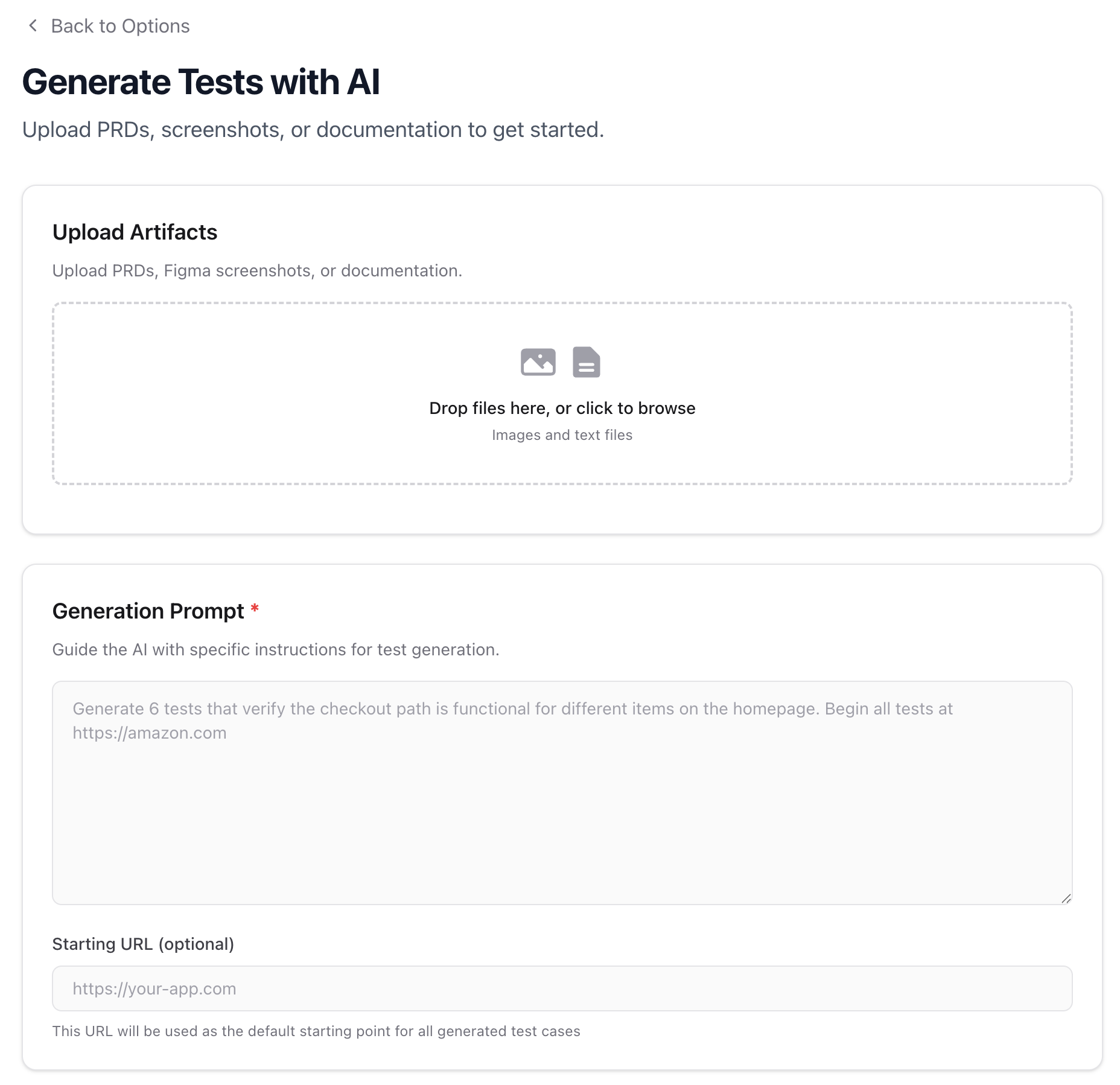
Upload the materials you want Docket to analyze. These serve as context for the AI when generating test cases. Supported formats: Images (.png, .jpg, .jpeg, .gif, .webp), text files (.txt, .md), documents (.pdf, .doc, .docx)
Common artifacts include:
- Product requirement documents (PRDs)
- Figma screenshots or design mockups
- Feature specifications
- User flow diagrams
Writing a Generation Prompt
The Generation Prompt is required and tells the AI what kind of tests to generate. Be specific about the flows, edge cases, and coverage you need. Good prompts:- “Generate 6 tests that verify the checkout path is functional, including adding items, applying a coupon, and completing payment”
- “Create tests for the user registration flow covering: successful signup, password validation, duplicate email handling, and email verification”
- “Generate tests for the settings page covering profile updates, password changes, and notification preferences”
- “Test everything” (too broad)
- “Generate some tests” (no direction)
Reviewing Generated Tests
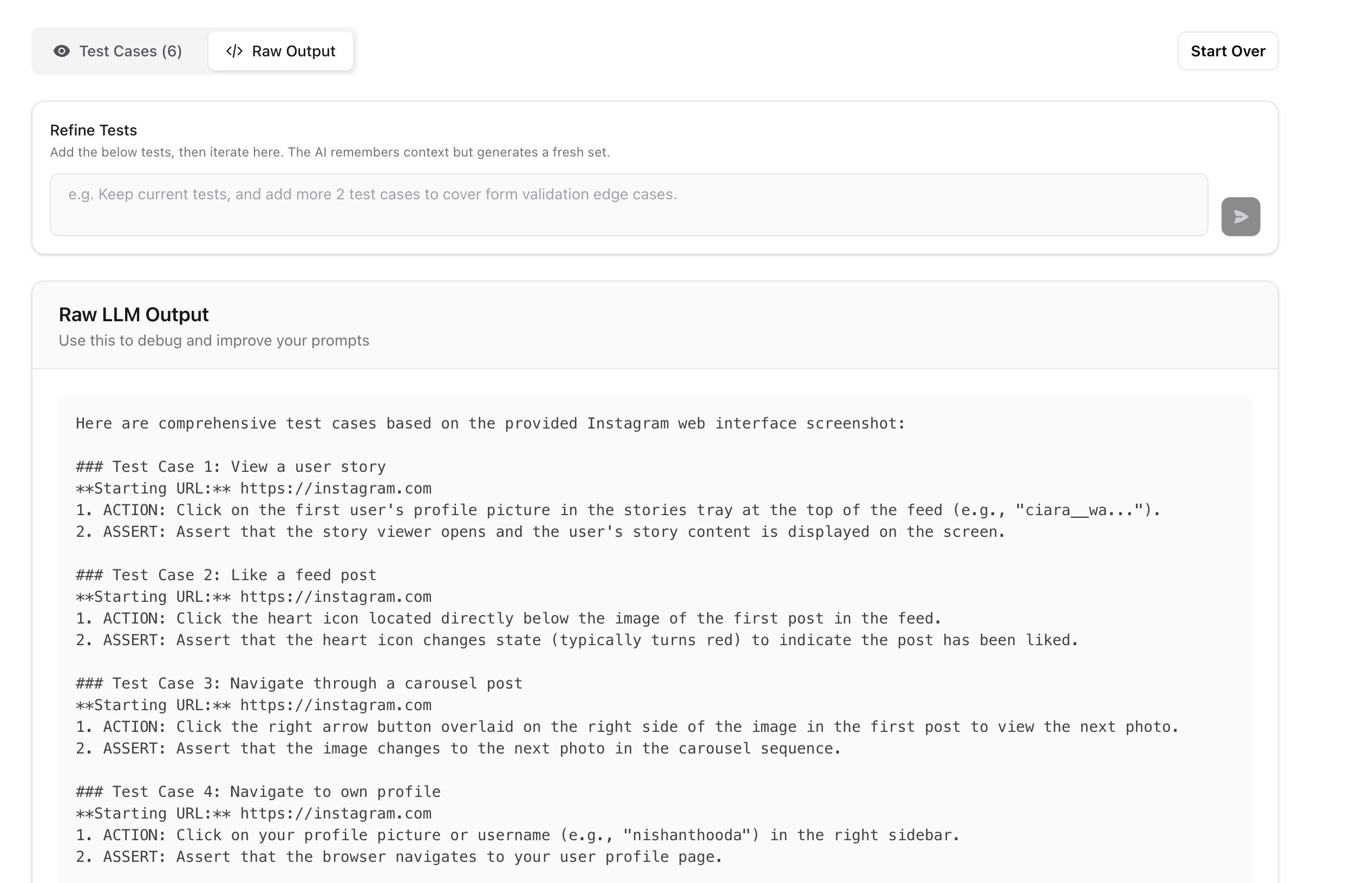
After generation, you’ll see a list of test cases. You can toggle between the Test Cases view and the Raw Output to inspect what the AI produced.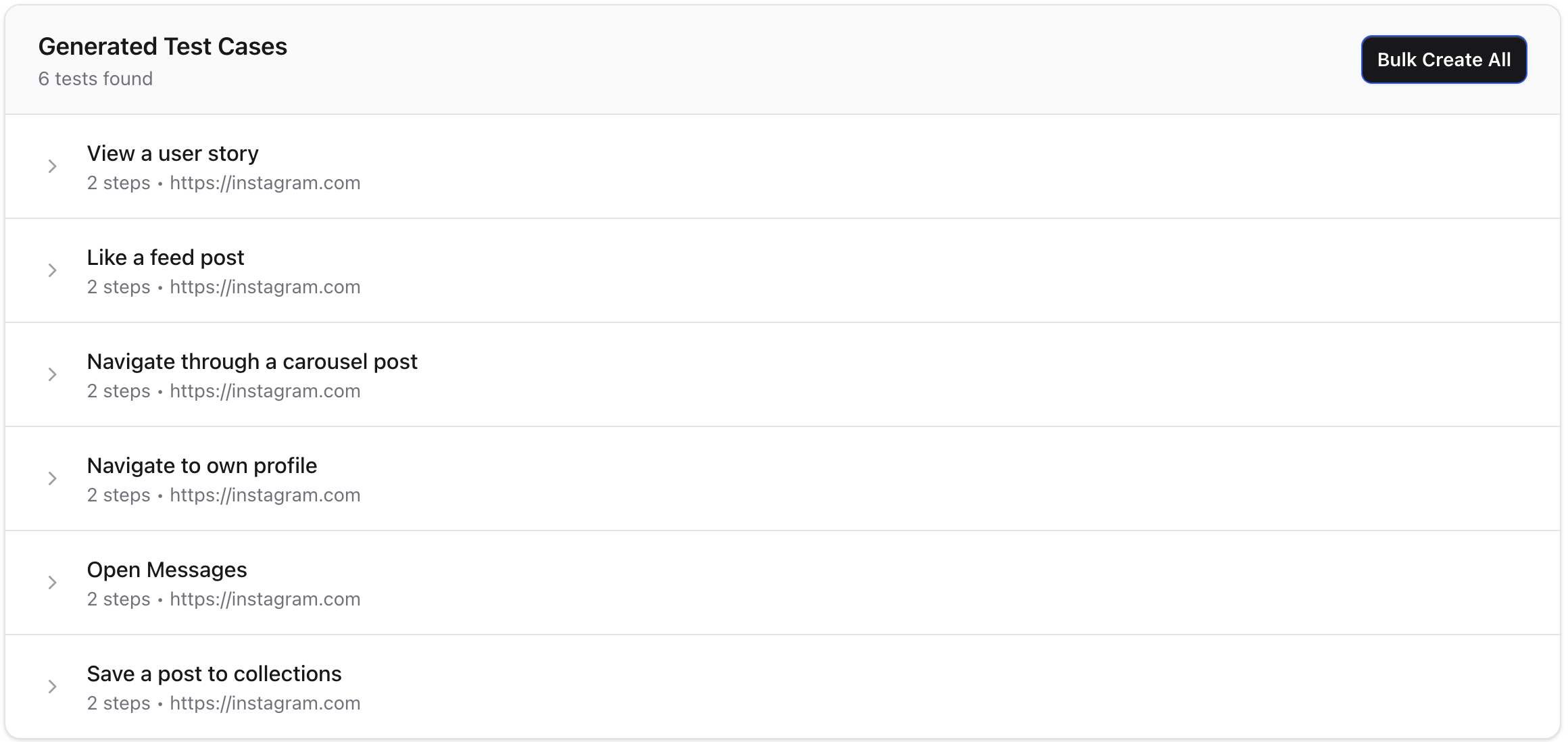
Iterating on Results
The AI retains context from previous generations, so you can refine results through follow-up prompts. Use the Refine Tests input to iterate:- “Add 2 more tests covering form validation edge cases”
- “Make the login tests more explicit about error states”
- “Remove the mobile tests and add desktop-only scenarios”
Creating Tests from Results
Once you’re satisfied with the generated test cases, you can:- Bulk Create All — Create all tests at once with shared settings (test suite, viewport, browser zoom)
- Create Test — Create a single test and open it in the editor for further refinement
Tip: Generated tests are a starting point. After creation, open individual tests to fine-tune steps, add recorded steps, or adjust variables.